Invoices & payments
Credit notes: lower what a client owes
When work is cut short, a rate changes or goods come back after the bill, issue a credit note against the invoice. It lowers what the client owes and goes in your GST return.
3 min read · 3 steps
Step 1
Open the invoice
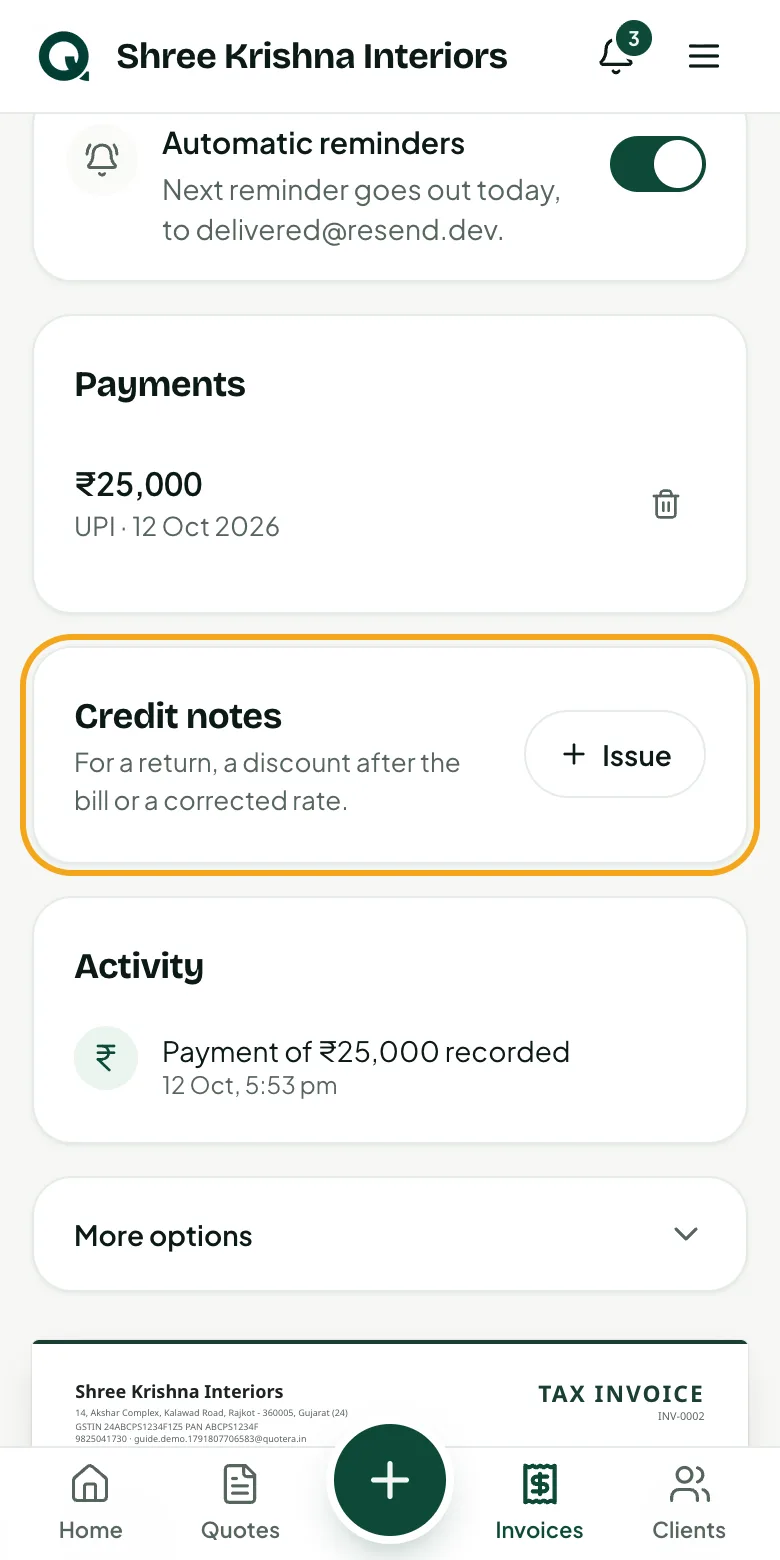
Credit notes are for invoices you've sent. Open the invoice and find “Credit notes” below the payments.
- 1Open “Invoices” and tap the invoice
- 2Under “Credit notes”, tap “Issue”
Tip: A draft can simply be edited; a credit note is for an invoice that has gone out.
Step 2
Say why and how much
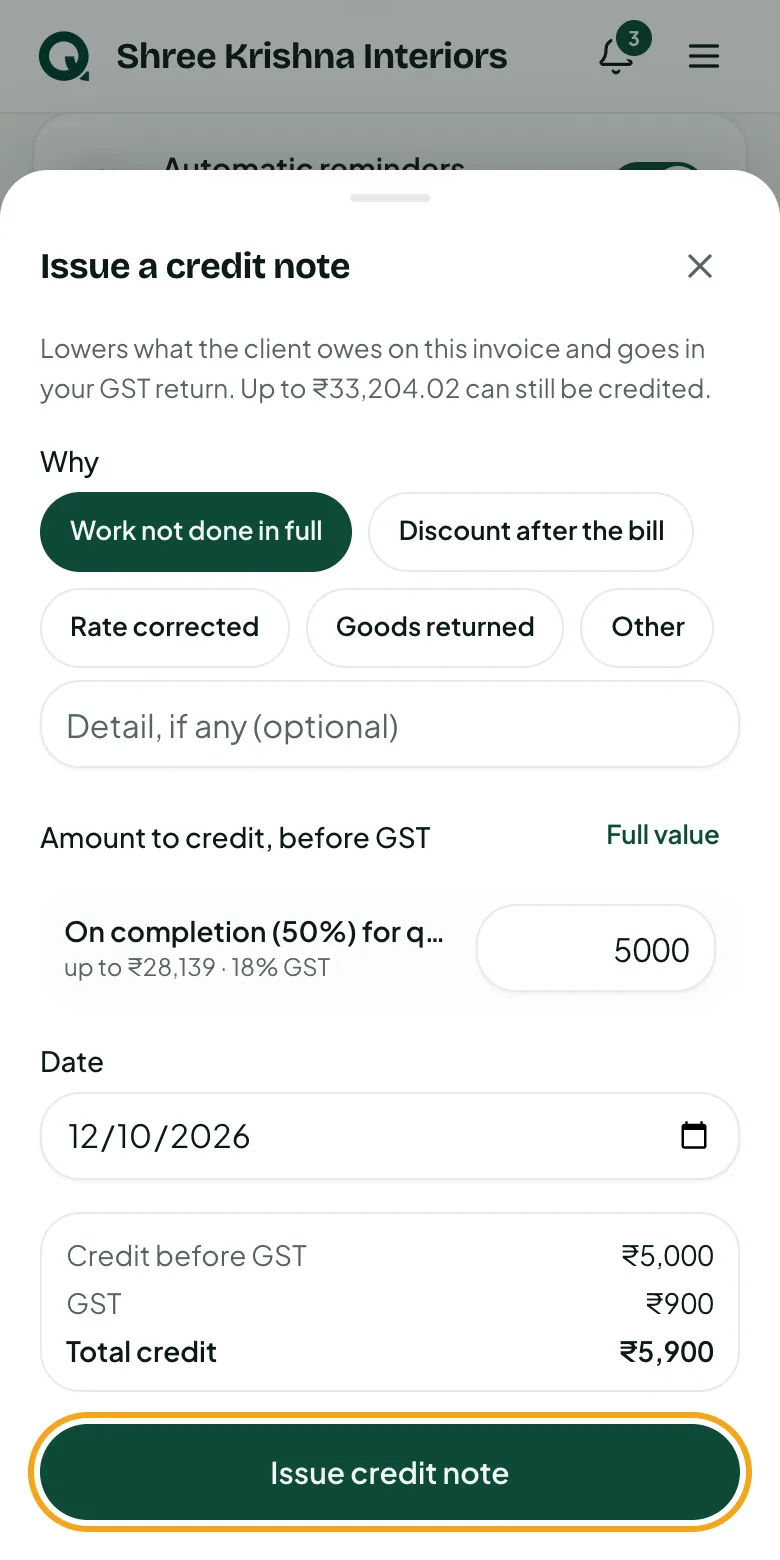
Pick the reason and type the amount to credit on each line, before GST. GST is added the same way as on the invoice.
- 1Tap the reason, like “Work not done in full” or “Discount after the bill”
- 2Type the amount on each line, or tap “Full value”
- 3Check “Total credit”, then tap “Issue credit note”
Tip: If the client has already paid, the app tells you how much to give back.
Step 3
See it on the invoice
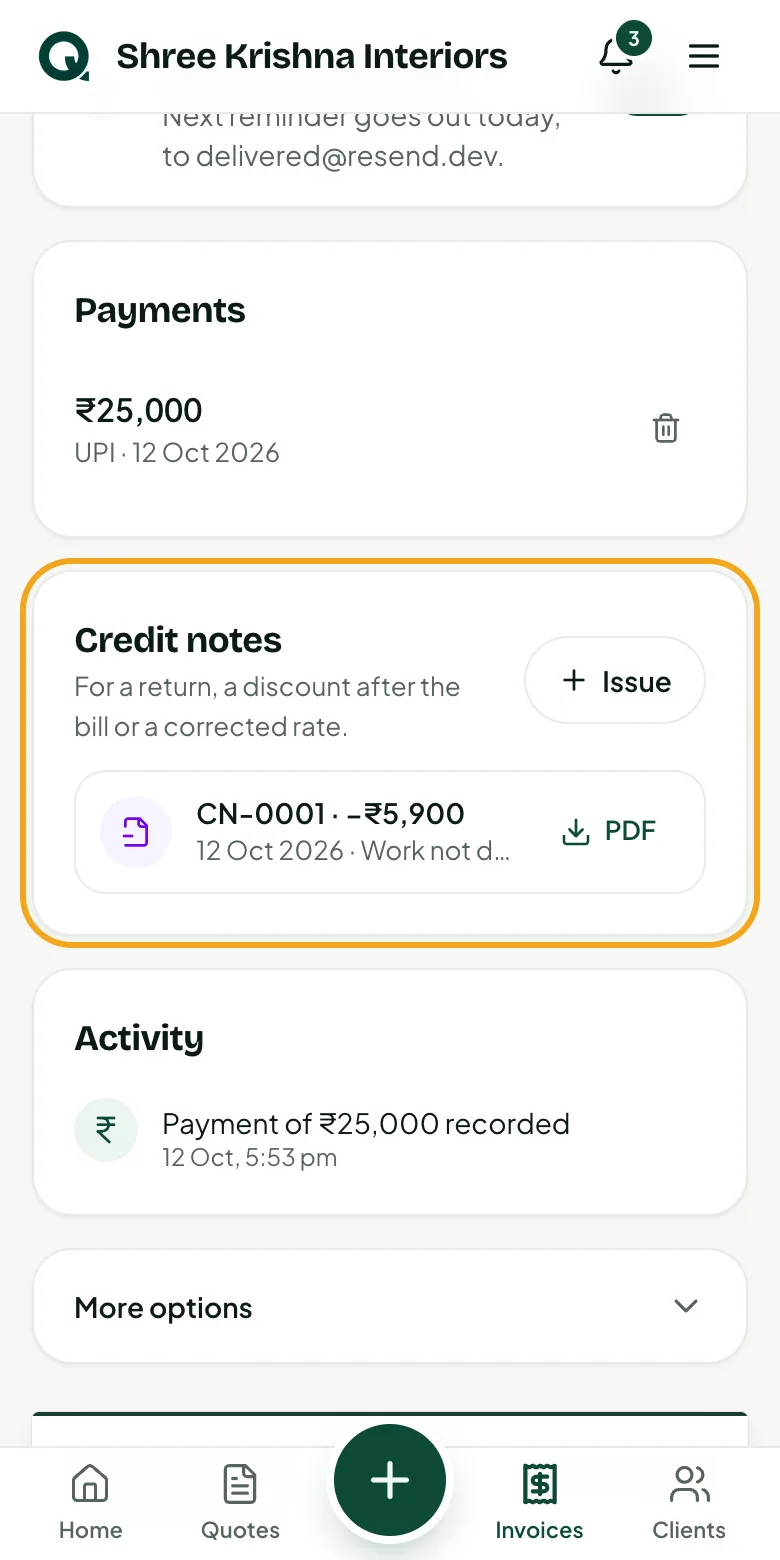
The credit note gets its own number (CN-0001) and PDF. What the client owes drops at once: on the invoice, on Home and on the client's link.
- 1Tap “PDF” next to the credit note to share it
- 2The invoice shows the credit in its totals, and “Settled” once nothing is due
- 3It goes in your GST report with the credit notes
Common questions
Can I change or delete a credit note?
No. Like an invoice, it stays on record for GST. If you credited too much, make a new invoice for the difference.
Can I edit an invoice after a credit note?
No, the credit note refers to the invoice as it was. Issue another credit note to correct it further.