Income & expenses
GST report: GSTR-1 and GSTR-3B
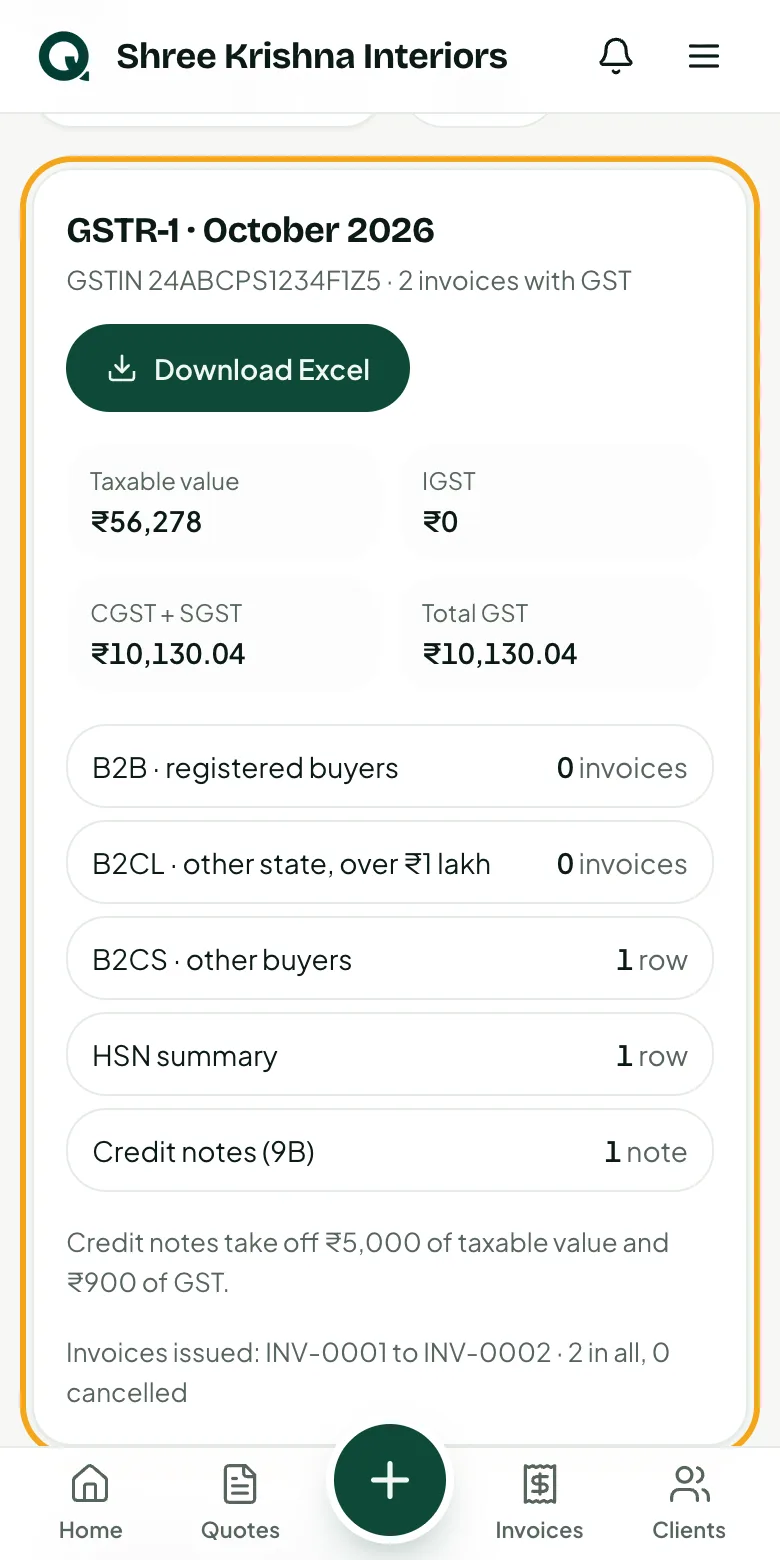
Every month Quotera works out GSTR-1 from your invoices and an estimate of GSTR-3B with the input credit from your GST bills. One Excel file has it all for your CA.
4 min read · 3 steps
Step 1
Open the GST report
It's for GST-registered businesses, so add your GSTIN in Settings first.
- 1Open the menu, then “GST report” (it's on the Invoices list too)
- 2Pick the month and tap “Show”
- 3See the taxable value, the GST and how many invoices go in B2B, B2CL and B2CS
Tip: Fix anything under “Check before filing”, like a missing HSN/SAC, before you send it.
Step 2
Check GSTR-3B
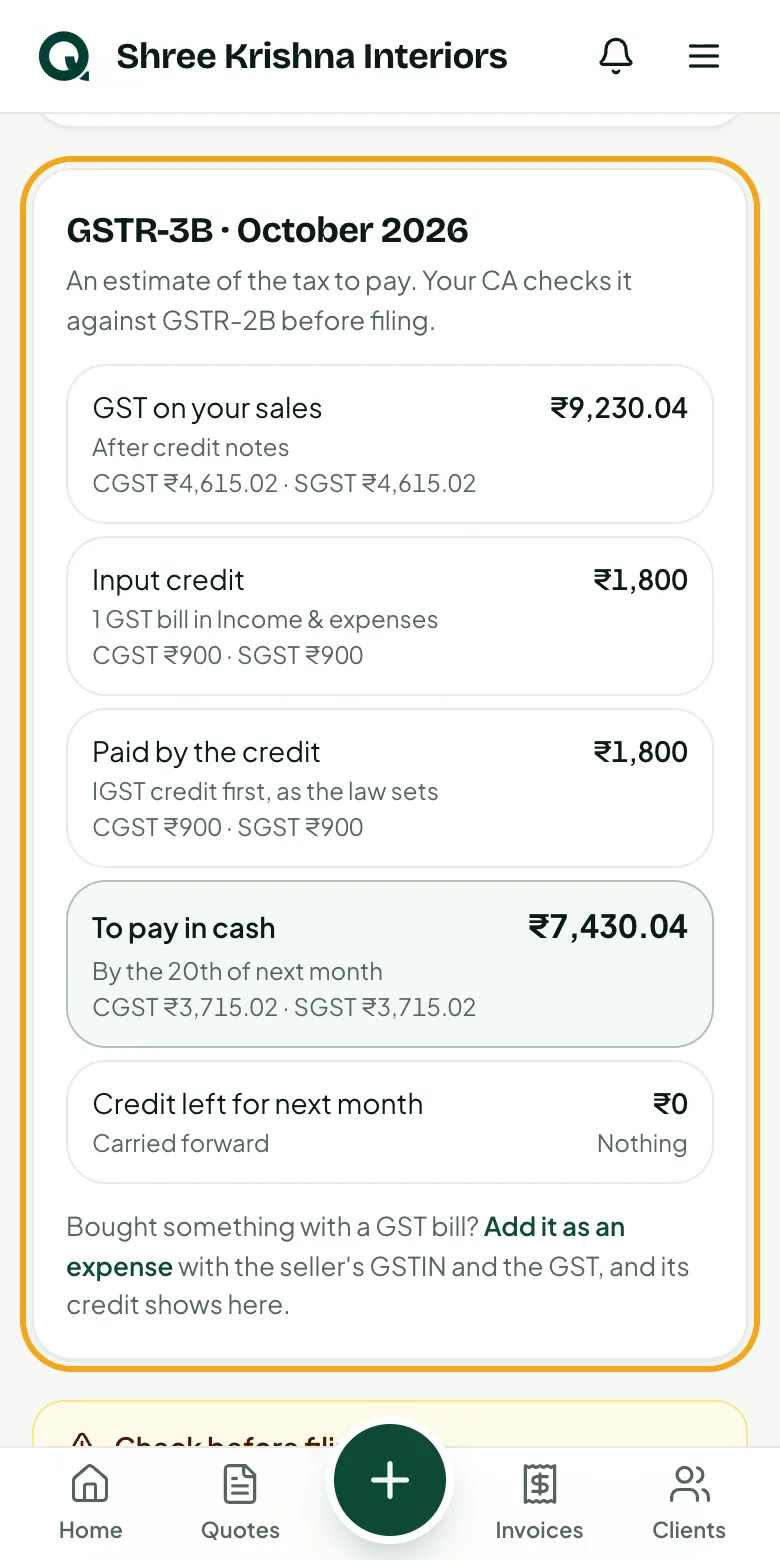
Below GSTR-1 you see the GST on your sales, the input credit from your bills, and what's left to pay in cash by the 20th of next month.
- 1“GST on your sales” already takes off credit notes
- 2“Paid by the credit” uses IGST credit first, as the law sets
- 3“To pay in cash” is what you pay on the GST portal
Step 3
Add GST bills for input credit
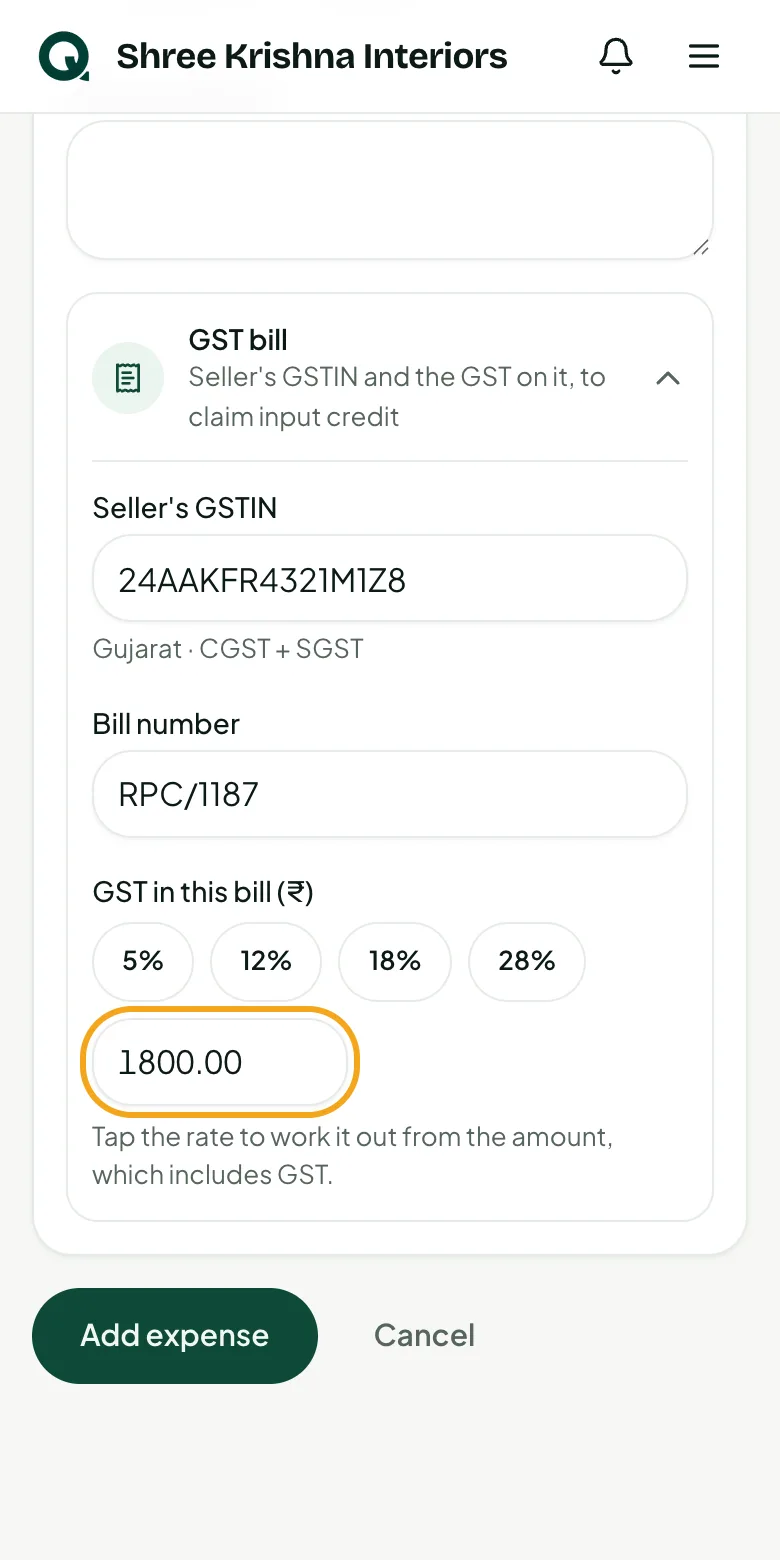
When you buy with a GST bill, add it as an expense with the seller's GSTIN and the GST. Its credit then counts in GSTR-3B.
- 1Tap “Expense”, type the amount and pick a category
- 2Open “GST bill” and type the seller's GSTIN and the bill number
- 3Tap the GST rate, like “18%”, or type the GST, then tap “Add expense”
Tip: Then tap “Download Excel” on the GST report: one file with GSTR-1, GSTR-3B and your purchase bills, for your CA.
Common questions
Can I file my return from Quotera?
Not directly. Give the Excel file to your CA, or copy the rows into the GST offline tool: the sheets use its column names.
Why is GSTR-3B an estimate?
Reverse charge, imports and blocked credits aren't in it, and your CA matches the credit with GSTR-2B on the portal before filing.