

Quotations
Create a quotation
Pick a client, add line items, choose tax mode, and save.
5 min readBeginner
What you'll learn
- New quotation from menu
- Line items with qty and rate
- Tax mode on each document
1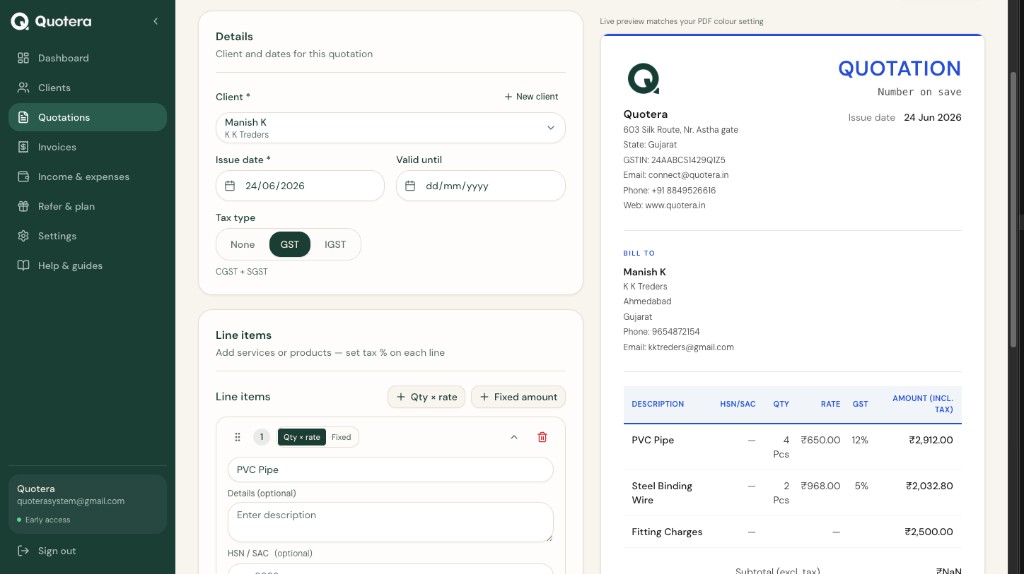
Quotation form - client, dates and line items
Start a new quotation
Go to Quotations in the menu, then New quotation.
2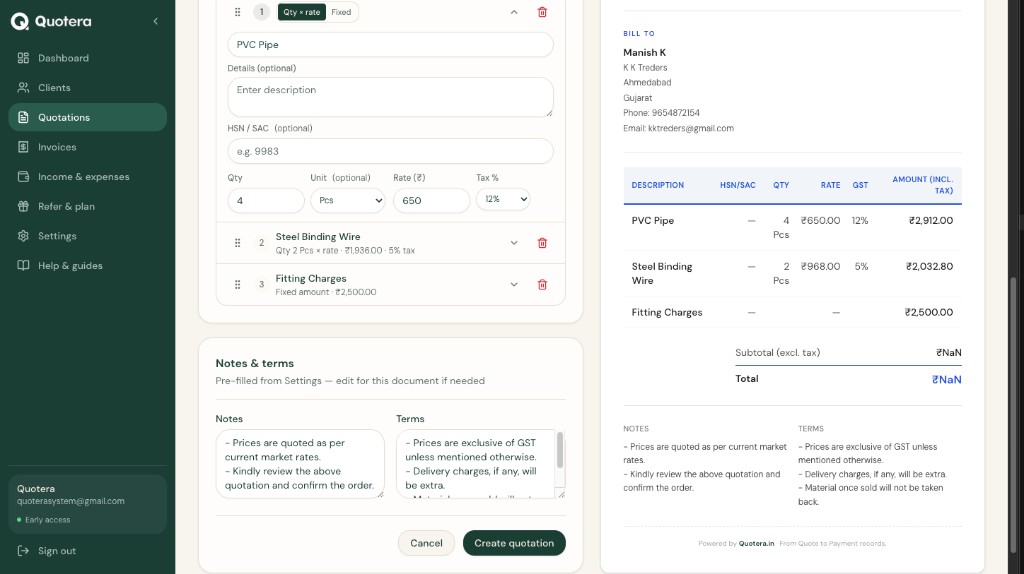
Quotation form - line items, notes and terms
Select client and add items
For each service or product add a line with:
- Description
- Quantity and unit (pcs, hrs, job…)
- Rate per unit
3
Choose tax mode
Pick the tax that applies to this document:
- CGST + SGST - same state as client
- IGST - different state
- No tax - when tax does not apply
Tip: Your state is in Settings → Company. Client state is on their profile.
4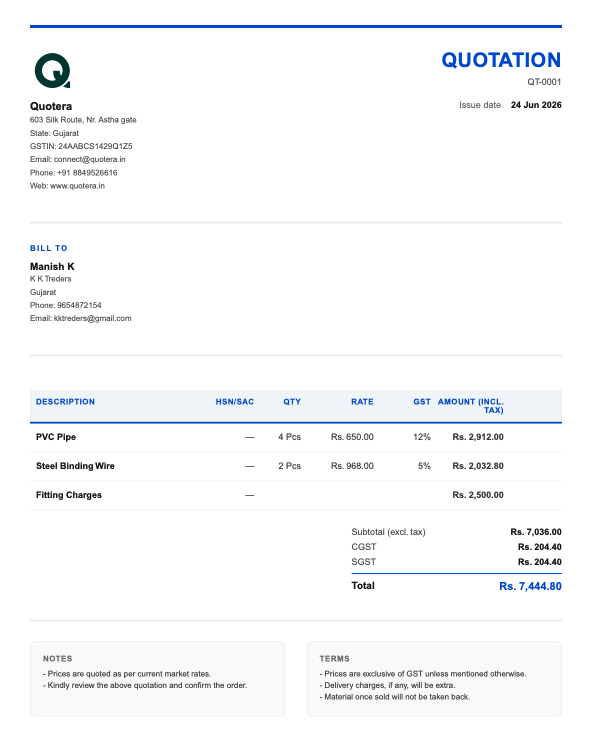
Quotation PDF preview with totals
Save and check preview
Save the quotation. The preview on the right matches your downloaded PDF - logo, colours and totals included.
Related guides
Common questions
Edit after saving?
Yes. Open from the list and change items or tax.