Dashboard
Alerts when a client acts
When a client accepts a quotation, asks for changes or says they've paid, you see it at once: a pop-up and the bell in the app, an alert on your phone, and an email.
2 min read · 3 steps
Step 1
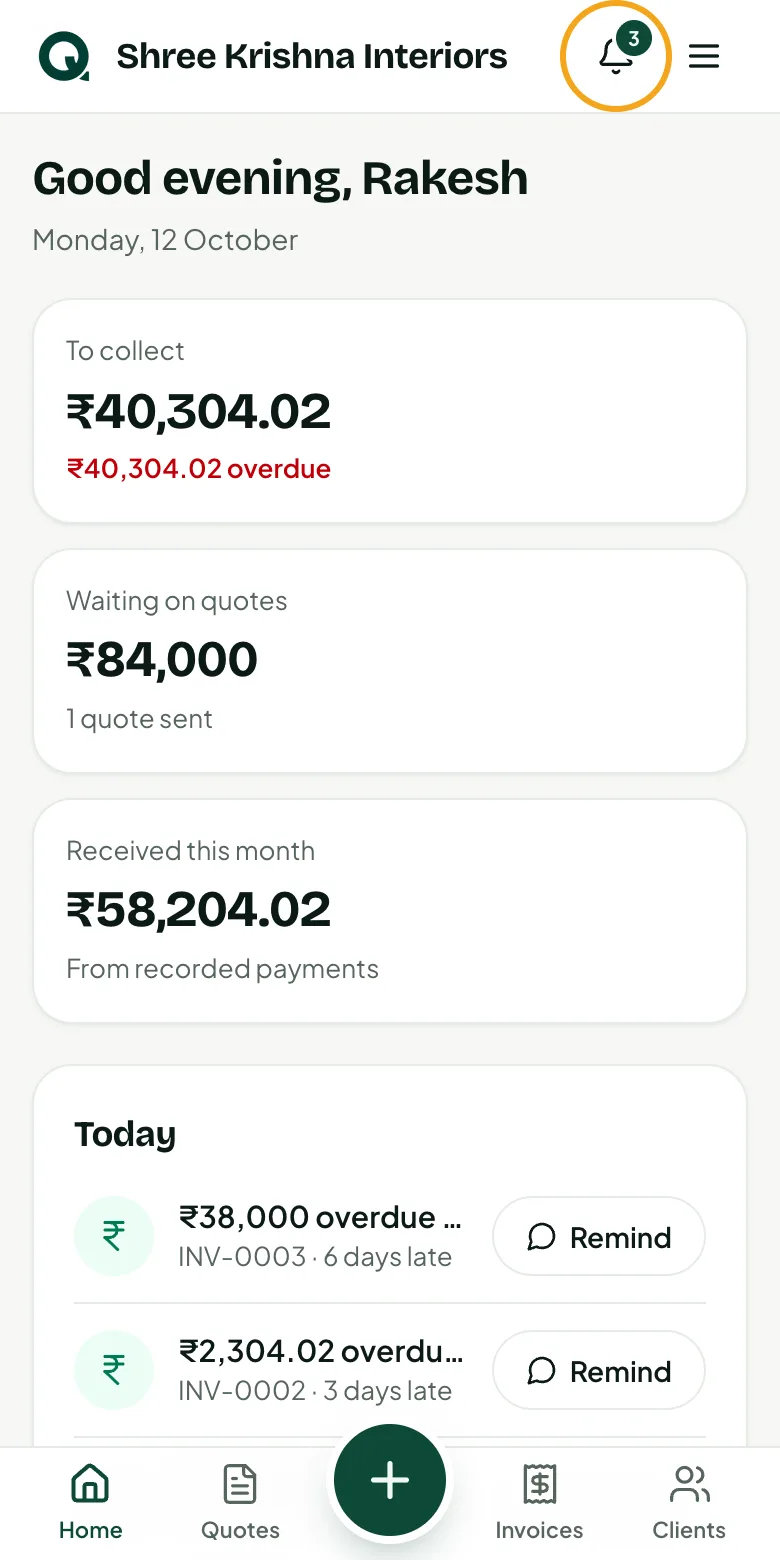
The bell
The bell at the top shows how many new alerts you have. With the app open, a pop-up shows the moment a client acts, and Home updates by itself.
- 1Tap the bell to see what clients did, newest first
- 2Tap an alert to open that quotation or invoice
Step 2
Alerts on this phone
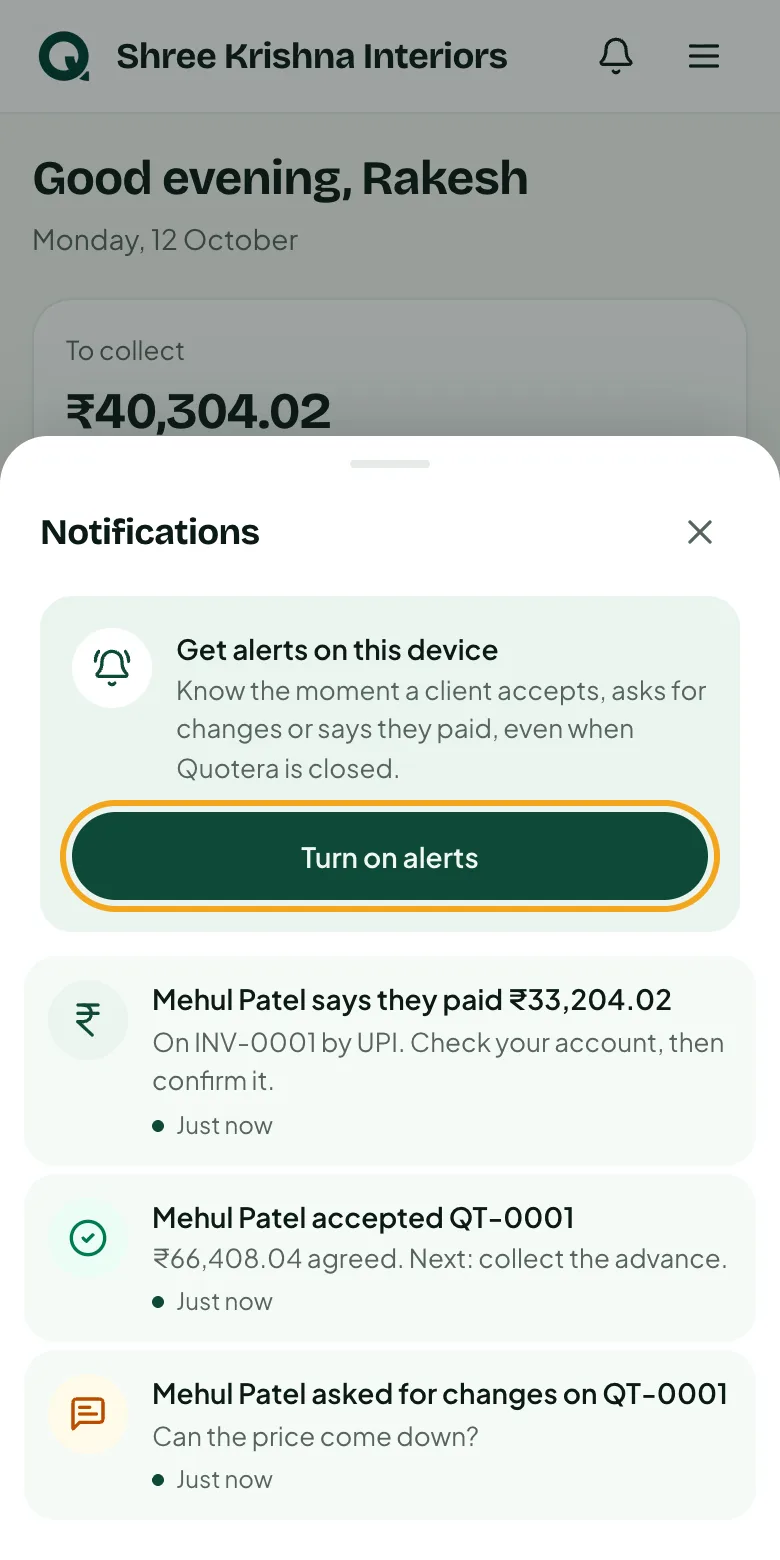
Turn on alerts once on each phone or computer you use. Then they come even when Quotera is closed.
- 1Tap the bell
- 2Tap “Turn on alerts”
- 3Tap “Allow” when the phone asks
Tip: To stop them on a device, open the bell and tap “Turn off”. Signing out turns them off on that device too.
Step 3
On an iPhone
iPhones send alerts only to apps on the Home Screen. Add Quotera there first, open it from the Home Screen, and then turn on alerts.
- 1In Safari, tap “Share”
- 2Tap “Add to Home Screen”
- 3Open Quotera from the Home Screen, then tap the bell and “Turn on alerts”
Common questions
Do alerts cost anything?
No. Alerts in the app and on your phone are free.
I tapped Allow but get no alerts.
Check the phone's notification settings for your browser or for Quotera. On an iPhone, alerts only work from the Home Screen app.