

Getting started
Welcome to Quotera
A quick look at the app menu and the order we recommend before your first client or quotation.
2 min readBeginner
What you'll learn
- Where each section is in the left menu
- Why Settings comes first
- The path from setup to getting paid
1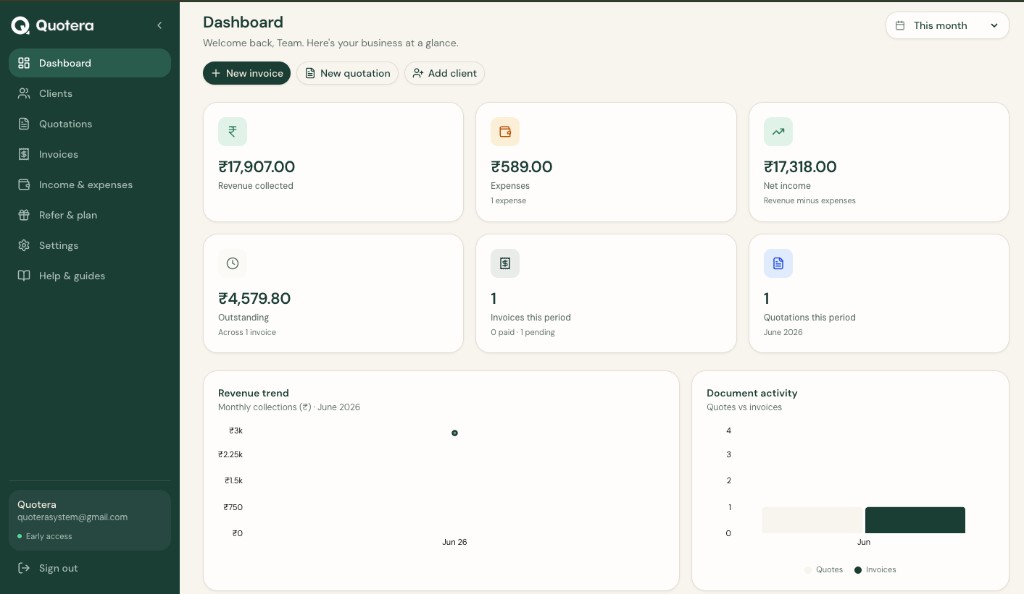
Left sidebar menu in Quotera
Sign in and open the menu
After login you land on the Dashboard. Your main sections are in the left sidebar:
- Dashboard - revenue and quick actions
- Clients - people you bill
- Quotations & Invoices - documents you send
- Income & expenses - simple cash log
- Settings - your company profile and branding
- Help & guides - this page
2
Follow this order
New users get the best results when they work in this sequence:
- Settings - company name, GST, logo, bank details
- Clients - save who you bill
- Quotations - create and share quotes
- Invoices - bill and record payments
Tip: Spend five minutes in Settings first. Your PDFs will already look professional.
Related guides
Common questions
Do I need to finish everything in Settings?
At minimum add company name and state. GSTIN, logo and bank details can be added anytime, but doing them early saves rework.